Setup guide
Set up your Google review NFC cards in five minutes.
One free app, your Google review link, and a tap. No account with us, nothing to keep paying for, and once it is written your Google review NFC card works for years. Four steps, and the fourth one is just checking it worked.
Rather not do it yourself? Tell us the business when you order and the cards arrive already pointing at its review page. Packs and prices.
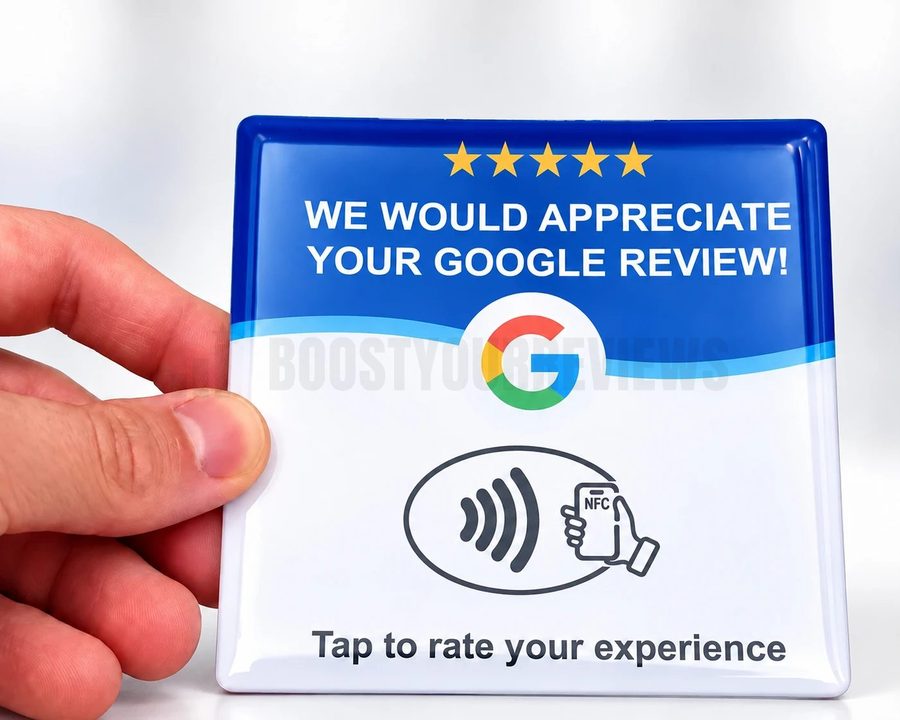
-
A blank card
Any card from us. Blank means the chip has no link on it yet.
-
An NFC phone
Almost any Android from the last ten years, or an iPhone 7 or newer.
-
Your review link
The link Google gives every business. Step 1 shows where it lives.
Four steps, one card.
Do the first two once. Steps 3 and 4 take under a minute a card, so a box of ten is a cup of tea.
-
Step 1: Copy your Google review link
Google gives every business a link that opens the "write a review" box straight away. It is the thing your Google review card will carry.
- a.On your phone or computer, sign in to the Google account that manages your Business Profile, then search your business name on Google, or just search my business.
- b.Your business panel appears at the top of the results. Choose Ask for reviews. If you see Read reviews instead, open that and choose Get more reviews. Either way a small box opens with your link and a Copy button.
- c.Copy the link. It starts with
g.page/r/and ends in/review, no s on the end. Paste it somewhere handy, like a note.
Check it: open the link in your phone's browser. Signed in to a personal Google account, you see your business name, five empty stars and a box to type in. Not signed in, Google asks you to sign in first, then shows the same box. That is what your customers get too.
No button? It only shows on a verified profile, so check that first. Otherwise find your Place ID with Google's Place ID finder and put it on the end of
https://search.google.com/local/writereview?placeid=. Same review box. Google says a Place ID can change over time, so tap a card once a year to check it still opens. -
Step 2: Get the free app
Your Google NFC card is written with NFC Tools, a free app by wakdev. The free version does everything you need here. Nothing else to install, no account to make.
Android: make sure NFC is switched on. Open Settings and search for NFC. On a Samsung it is under Connections, NFC and contactless payments; on a Pixel under Connected devices, Connection preferences, NFC. Most phones already have it on.
iPhone: NFC is always on, there is nothing to switch. The app needs an iPhone 7 or newer on iOS 15.6 or later.
-
Step 3: Write the link to the card
This is the whole job. The app puts your link on the chip, and from then on any phone that taps the card opens it.
- a.Open NFC Tools and go to the Write tab.
- b.Tap Add a record, then URL / URI. Not "Text", that one does not open a browser.
- c.Paste your review link from step 1, the full address starting https://, and confirm (the button says OK or Validate).
- d.Tap the Write button (it shows a size, like Write / 32 bytes), then hold your Google review NFC card against the phone and keep it still until it says Write successful. A second or two. Do this on a wooden or plastic table, not a metal one.
Where to hold it, Android
Flat against the back of the phone, usually the upper half or the middle. If nothing happens, slide the card slowly down the back until it catches. A Samsung shows the exact spot under Settings, Connections, NFC and contactless payments. Take off a thick or metal case first.
Where to hold it, iPhone
The reader is in the top edge. When the Ready to Scan sheet pops up, touch the card to the top of the phone, on the back near the camera, and hold. The middle of the phone will not do it.
Doing a box of them? The record stays in the app. Press Write again, hold the next card, and again. Same link on every card in a couple of minutes.
Leave "Lock a tag" alone. It is under Other, it is permanent, and it means the link can never be changed, not even by you. If you are handing cards to someone else's business and want them tamper proof, use Set password under Other instead. That stops rewriting too, and you can take it off again.
-
Step 4: Tap it to check
Close the app, or better, borrow someone else's phone. Wake the screen, unlock an Android, and tap the Google NFC review card the way a customer would. No app needs to be open.
On an iPhone
A banner slides down from the top with your link on it. Tap the banner and Safari opens your review page. The phone can be locked, as long as the screen is awake. iPhone XS, XR and everything newer does this with nothing installed.
On an Android
The review page opens straight away, or on the newest Android a notification appears and one tap opens it. An Android only reads a card while it is unlocked, so a locked phone doing nothing is the phone, not the card.
That is it. Peel the backing, stick it where hands already go, and let people know it is there.
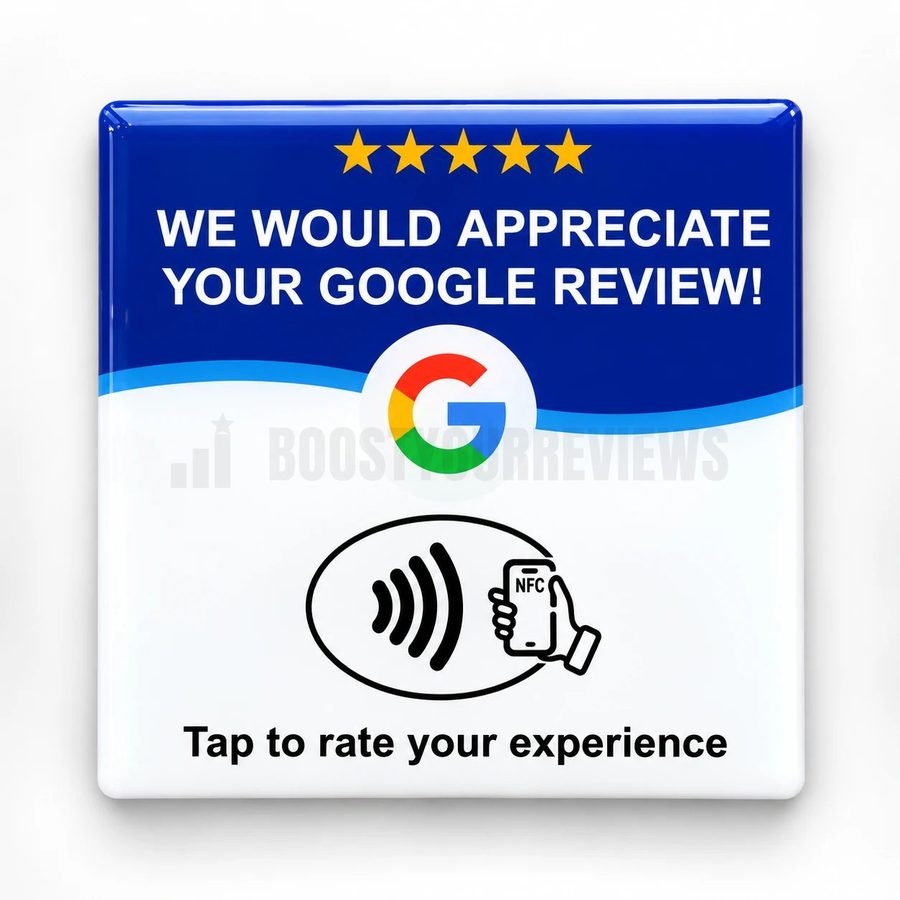
Where it earns its keep.
An NFC Google review card works anywhere a customer is already holding their phone with a spare ten seconds. The back is 3M adhesive: peel, press for a few seconds, done.
-
By the card machine
They have just paid and the phone is out. "Tap that and tell Google how we did" is the whole script.
-
On the table or the chair
Cafes, restaurants, salons, barbers. One card a seat, tapped while they wait for the bill or the colour to take.
-
In your hand at the door
Trades, mobile hairdressers, cleaners. Hand it over as you say goodbye, take it back after the tap.
-
Not straight onto metal
A metal counter or till behind the card can block the signal. Stick it to the plastic card machine, a menu stand or a wooden surface instead.
Questions people ask while setting up.
Can I change the link later?
Does my customer need the app too?
Which iPhones read the card with nothing installed?
The phone will not write. What now?
A customer tapped and nothing happened. Why?
Can I put a different link on it, not Google?
Is asking for reviews like this allowed?
Rather we did the setting up?
Tell us the business name and where it is when you order. The cards arrive written and tested, and this page becomes something you never needed.